
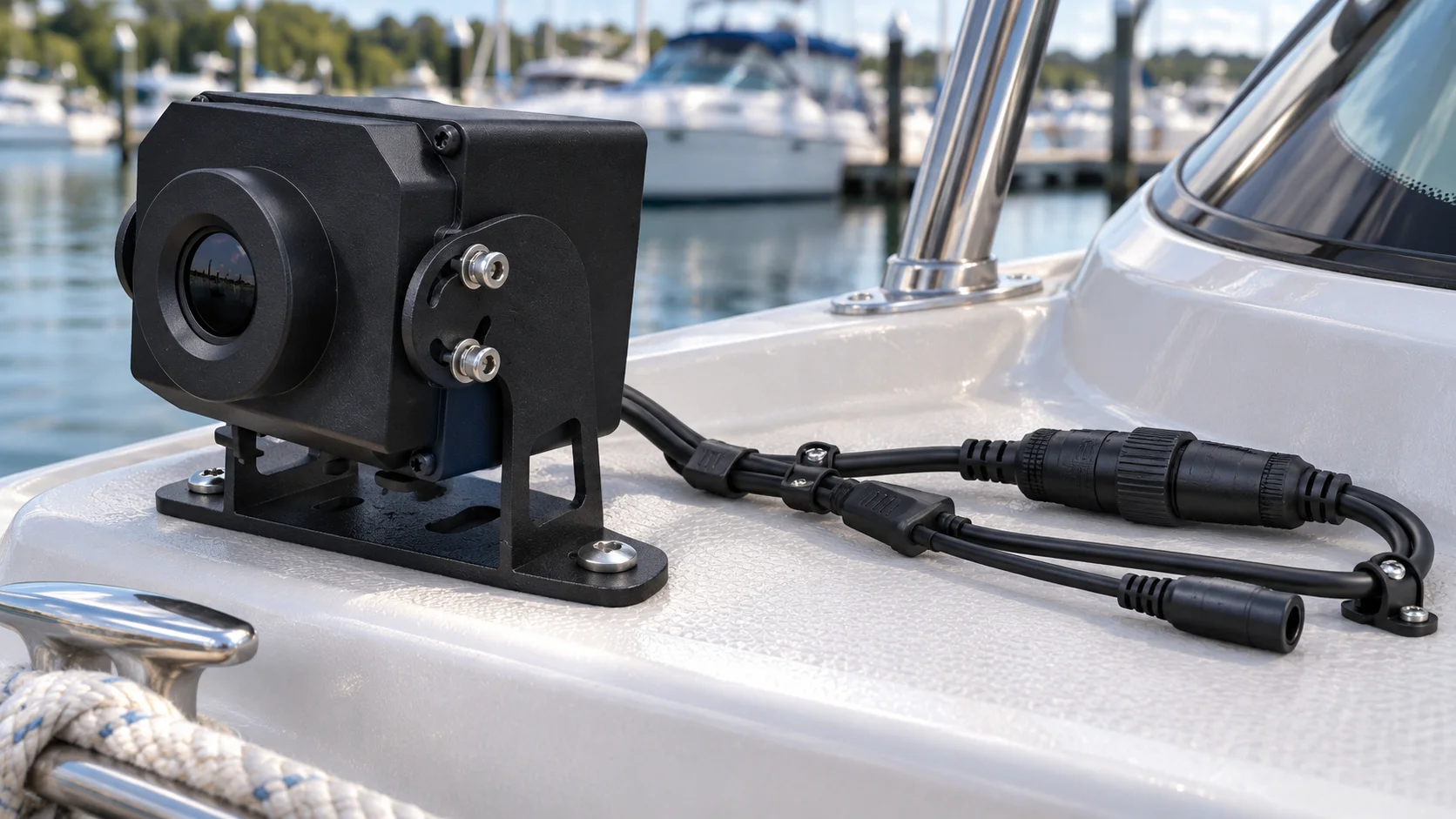
Yes, your TNV thermal video can usually reach an existing boat display. The camera’s RJ45 output carries RTSP, ONVIF, and DHCP, so it can connect over the boat network or through a converter to a display input.
Confirm three things before you buy anything. First, the camera output type. Second, the display input type. Third, the bridge between them. An RJ45 port does not mean the camera accepts PoE, and ONVIF support does not guarantee every multifunction display will recognize it.
Treat video, power, and alarm as separate paths. The AI thermal camera ONVIF thermal camera marine thermal camera setup needs DC12V at under 6W on the power side, and you must verify the alarm signal on its own.
Key Takeaways
Check your camera’s output and your display’s input before buying anything.
Use an Ethernet connection for the simplest setup if your display supports it.
Keep video, power, and alarm paths separate and test each one.
Test the full system at the dock and during a night cruise.
ONVIF support does not guarantee compatibility; test discovery on your actual display.
When AI Thermal Camera ONVIF Thermal Camera Integration Works
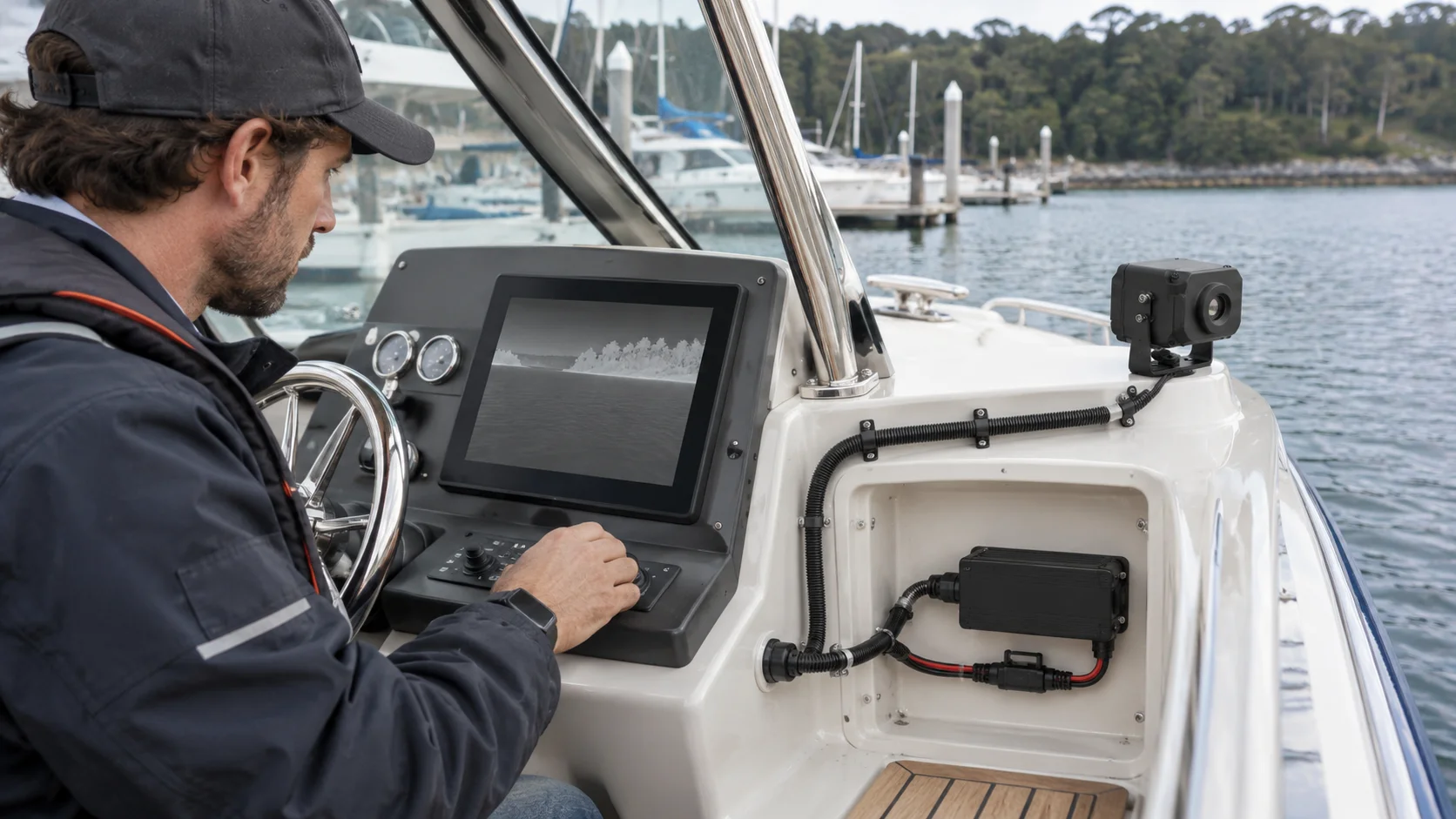
Integration works when the camera sends ONVIF or RTSP video over its RJ45 port and the display accepts that stream over Ethernet, or accepts HDMI or composite video through a converter. You do not need matching brands. You need a shared language between the two devices, and ONVIF or RTSP provides that language.
The VERYTEK TNV Series AI Network Thermal Camera is IP67-rated for vehicle-mounted night vision and marine observation, so it suits an exposed helm or mast position. A fixed marine thermal camera such as the FLIR M232 can complement an onboard setup. The M232 uses a 320×240 sensor running at 9Hz and connects over Ethernet to multi-function displays. On compatible displays you can view the image and control the camera from the screen, provided the camera sits on the same network as the chartplotter.
Match Camera Output to Display Input
Start with the camera side. The TNV outputs video over RJ45 using RTSP, ONVIF, and DHCP. That single cable carries the stream to any device on the same network. The display side decides your bridge. An Ethernet-capable display can pull the stream directly. A display with only HDMI or composite input needs a converter or a small network video recorder in between.
Do not assume the RJ45 port means the camera accepts PoE. The TNV takes DC12V at under 6W on a separate power path. Do not assume ONVIF support means every multifunction display will recognize the camera either. Some displays implement ONVIF profiles partially, and some expect a specific profile before they list the camera. Test discovery on the actual display before you commit to a mounting plan.
Keep three paths separate during planning: video, power, and alarm. Each one needs its own verification. A working video stream tells you nothing about whether the alarm output reaches your buzzer or your chartplotter alert.
Confirm Resolution, Frame Rate, and Latency
Match the stream settings to what the display can decode. A display that handles a lower frame rate well will show a smoother image than one that stumbles on a stream it cannot keep up with. The FLIR M232 runs its 320×240 sensor at 9Hz, a rate that suits slow panning and steady observation. Higher frame rates help with fast motion, but they also raise bandwidth and decoder load.
Latency matters most at night, when you use the image to judge distance to a buoy or a dock. Check the delay between a real object moving and the image moving. A short delay keeps your steering decisions tied to what you see. A long delay forces you to lead the image, and that is dangerous in close quarters.
Some installations use HD-SDI or fiber output instead of IP streaming. Those paths suit a dedicated monitor with a matching input. For most recreational boats, the network path is simpler and needs less cabling.
Boat Display Video Inputs and Marine Thermal Camera Fit
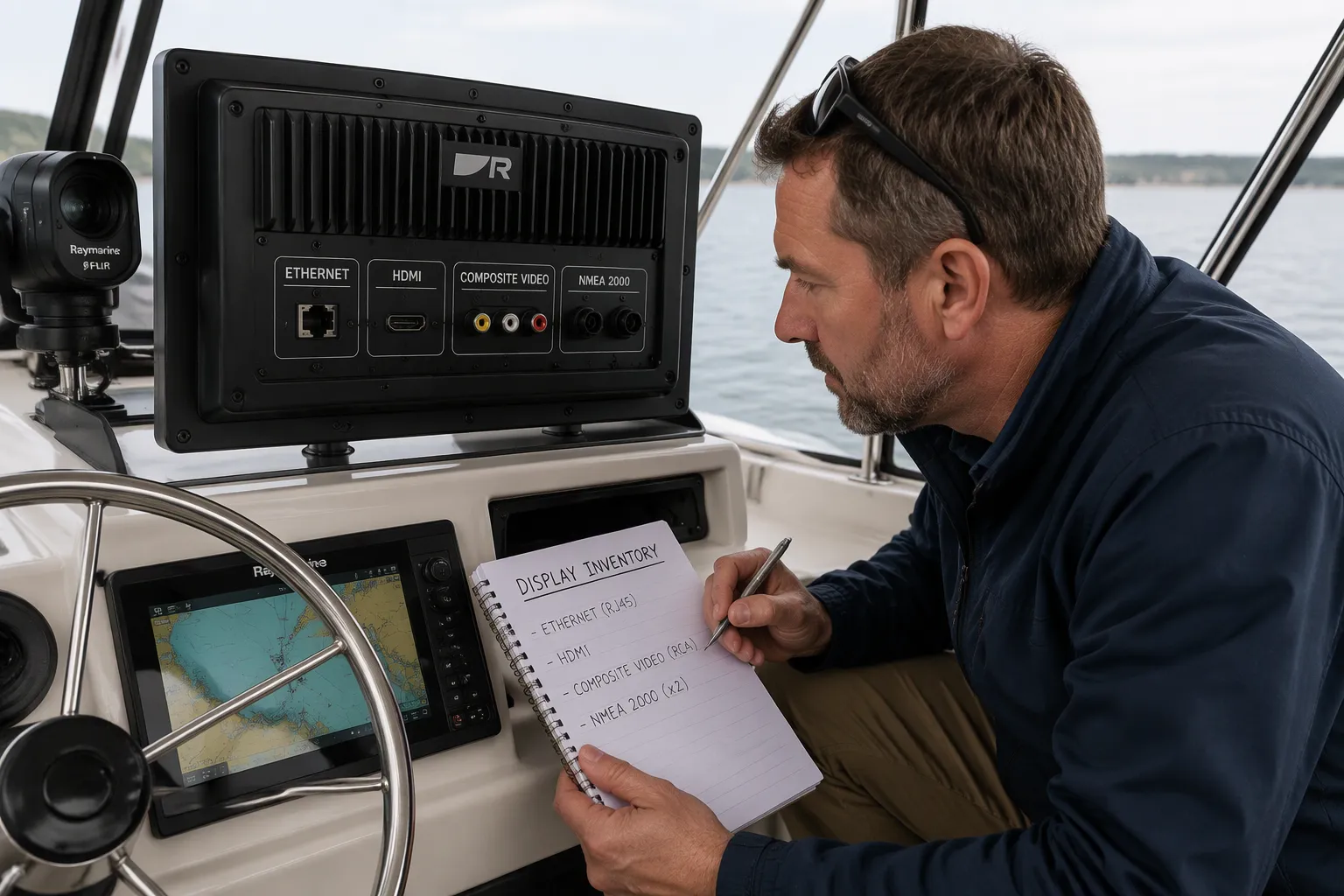
Walk to the helm with a notebook before you order a single adapter. Write down every port on the back of your display, the label printed beside it, and the menu entry that selects it. This inventory takes ten minutes. It saves you from buying a converter that solves the wrong problem.
Most compatibility failures start here. An owner buys a camera with an RJ45 port, assumes the display will accept it, and discovers the display has no network video player. Another owner buys an HDMI adapter for a display that only accepts composite. The camera was never the problem. The missing input was.
List HDMI, Composite, Ethernet, NMEA Inputs
Boat displays carry several input types, and each one behaves differently with a thermal camera. The table below shows what each input typically carries and how it fits a thermal stream.
Input | What it carries | Fit for thermal video |
|---|---|---|
Ethernet (RJ45) | Network video over IP | Direct fit when the display decodes RTSP or ONVIF |
HDMI | Digital video from a source device | Needs a converter or NVR that outputs HDMI |
Composite (AV) | Analog video | Needs a converter that turns the IP stream into analog |
NMEA 0183 / NMEA 2000 | Navigation and instrument data | Carries data, not video |
Ethernet is the cleanest path. Your camera sends the stream over the boat network, and the display pulls it in. HDMI and composite work through a bridge device. NMEA deserves a clear note: it moves navigation and instrument data between equipment. It does not carry a thermal video stream. Do not plan a video path through an NMEA port.
The Ulysses Micro brings thermal vision to a boat’s helm in a compact package built for small, fast boats. It delivers a high-speed thermal image with clarity and sharpness that extends operational safety and confidence at sea in all lighting conditions. The Ulysses Micro S+ (ULS-M640S) shows what a helm-ready unit looks like on paper.
Specification / Feature | Value |
|---|---|
Model | Ulysses Micro S+ (ULS-M640S) |
Design purpose | Compact marine thermal camera and night vision system for small, fast boat installation |
Thermal resolution | 640 x 480 pixels |
Field of view (horizontal x vertical) | 24° x 18° |
Small vessel detection (13′ x 5′) | Up to 1.8 miles |
Dimensions (width x height) | 5.5″ x 8.7″ |
Weight | 5.5 pounds |
Stabilization | Gyro-stabilized for steady viewing in rolling seas |
Display interfacing | Wide display interfacing options |
Network functions | Radar Slave and other advanced network functions |
Construction | Rugged, weatherproof |
Connectivity | Wi-Fi to smart devices via the Ulysses Remote App (iOS and Android) |
In the box | Camera, junction box, 33′ (10 M) camera harness, power cable, AV analog cable, mounting template and hardware, instruction manual |
Note the AV analog cable in that box. It gives you a composite path to an older display without a separate converter purchase. The Ulysses Mini follows the same compact philosophy for smaller helms.
The VERYTEK TEK-S AI dual-spectrum PTZ covers the other end of the range. It pairs a 640×512 IR sensor with 1080P visible imaging, 10x zoom, 360-degree pan, AI detection, and IP66 protection. A pan-tilt unit like this suits a mast or hardtop mount where you want to sweep the horizon rather than stare at one bearing.
Check Supported Resolutions and Streaming Apps
A display that lists Ethernet as an input still needs to decode your stream. Check the resolution and frame rate menu before you mount anything. Typical network video support on boat displays looks like this.
Specification | Value |
|---|---|
Video format (NET) | 1080P/30, 1080P/25, 720P/60, 720P/50, 720P/30, 720P/25 |
Image resolution | Max: 1920*1080@60fps |
Protocols | HTTP, RTSP, TCP, UDP, ONVIF |
Set the camera stream to a format on that list. A 1080P/30 stream fits most modern displays. An older unit may top out at 720P, and that is fine for night observation. Match the camera to the display rather than forcing the display to match the camera.
ONVIF support on the datasheet does not guarantee your multifunction display will list the camera. Some displays implement ONVIF profiles partially. Some expect a specific profile before discovery works. Test discovery on the actual display, with the actual firmware version, before you drill holes.
Software gives you a second route when the display’s built-in player falls short. Xeoma, Blue Iris, and Brinant AI Guardian can change ONVIF settings and integrate with ONVIF/RTSP models. Run one of these on a small PC or marine computer at the helm, and the display becomes a monitor for that software. This path also lets you record the stream and review it later.
The AI thermal camera ONVIF thermal camera marine thermal camera chain works best when you treat each link as a separate test. Camera output, network path, display decoder, and viewing software each pass or fail on their own.
One more check belongs in this step. Confirm the display’s streaming app accepts the camera’s credentials and stream path. Some apps want a full RTSP URL. Others discover the camera through ONVIF and fill in the path for you. Know which style your display uses before you configure the camera.
Network and Power Check Before Adapters
You have inventoried the display inputs. Now verify the network and power path before you buy any adapter. The TNV camera uses RJ45 with RTSP, ONVIF, and DHCP. It draws DC12V at under 6W. Those two facts shape every cable and switch decision that follows.
An RJ45 port does not equal PoE support. The TNV needs DC12V on a separate power path. Do not plug the camera into a PoE switch and expect it to boot. Confirm the power arrangement first, then confirm the data path.
Verify PoE, DC12V, and Cable Runs
Check the camera’s power label against your supply. The TNV lists DC 12V input and under 6W consumption. Some marine thermal cameras list a wider DC 9–24V configuration, and some draw under 2W, rising to under 4W with defrost activated. A defrost heater may need its own 5V USB connection. Confirm the supplied power arrangement for your specific model.
Specification | Value |
|---|---|
Input Voltage | DC 12 V |
Power Consumption | <6 W |
Measure your cable run before you mount the camera. A long run drops voltage, and a camera that browns out at night will fail when you need it most. Use the correct gauge for the distance, and keep the power cable separate from the video path where possible.
Confirm IP Addressing and Switch Capacity
Add the camera to the boat network only after you check two things. First, confirm the switch has a free port and enough capacity for the stream. Second, confirm the IP addressing scheme. The TNV supports DHCP, so it can take an address from your router or switch automatically. A static address works better on a fixed installation, because the display always finds the camera at the same address.
Count your existing network devices before you add the camera. Chartplotters, radar, and AIS units may already use several ports. A small unmanaged switch handles a few devices. A larger network needs a managed switch with enough throughput for every stream.
Test the camera on the bench first. Power it with DC12V, connect it to the switch, and confirm the display discovers it. This bench test isolates the AI thermal camera ONVIF thermal camera marine thermal camera chain before you commit to a permanent install.
RTSP/ONVIF Configuration and Alarm Roles
Find RTSP URLs and ONVIF Profiles
Locate the stream address before you touch the display settings. Check your camera’s manual or its configuration software first. Many brands publish a directory of RTSP paths, and you swap in your camera’s IP address to build the full URL. If your brand is not listed, a free tool called ONVIF Device Manager usually finds the address for you. Always test the URL in VLC before you configure the display.
URL formats vary by manufacturer. Some cameras use a simple path such as rtsp://camera-ip/stream1, while others embed credentials like rtsp://user:password@camera-ip/stream1. Cameras with ONVIF integration modes often transmit the access URL automatically to ONVIF clients, so you do not need to type it. Confirm which profile your camera exposes, because a display that expects one profile may not list a camera that offers another.
Assign Video, AI, and Alarm Tasks
Automatic analysis can detect line crossing, intrusion, people, or vehicles. Treat those detections as a separate task from video display. The display shows the image. The AI engine watches the stream and raises events. The alarm path carries those events to a buzzer, a chartplotter alert, or a recording trigger.
Assign each role to a device that can handle it. Run the AI analysis on the camera or on a small computer at the helm, and route alarms through their own output. Keep the video stream clean for the display. This separation keeps a detection event from interrupting your view and keeps the AI thermal camera ONVIF thermal camera marine thermal camera chain predictable. Test each alarm trigger at the dock before you rely on it offshore.
Dock and Night Testing for Marine Thermal Camera
Dock Commissioning and Latency Checks
Run the full chain at the dock before you leave the slip. Power the camera with DC12V, confirm the draw stays under 6W, and open a live view on the display. Check that the image appears without a manual restart. Then walk the overlay: confirm the time, the camera name, and any detection boxes sit where you expect them on screen.
Measure latency with a simple test. Have a helper wave a hand or a paddle in front of the lens while you watch the display. Judge the gap between the real motion and the on-screen motion. A short delay keeps your steering tied to what you see. A long delay forces you to lead the image, and that is unsafe near a dock.
Verify each alarm trigger on its own. Cross a line, enter a zone, and confirm the buzzer or alert fires. Remember that RJ45 does not equal PoE support, so keep the DC12V feed separate from the data path during every test.
Night Cruise Recording and Troubleshooting
Take the boat out after dark and record the stream for the whole run. Review the footage the next day. Look for dropped frames, washed-out highlights, and detection events that fired on the wrong object. Adjust the stream settings and repeat the run if the image stutters.
Work through common faults in order. No image usually means an address mismatch or a blocked port. A listed camera that will not stream often points to a partial ONVIF profile, because ONVIF does not guarantee compatibility with all MFDs. A camera that reboots at night usually has a voltage drop on a long cable run.
Treat the AI thermal camera ONVIF thermal camera marine thermal camera setup as a system you tune, not a box you install once. Consult our compatibility guide or support team with your exact camera and display models before you change hardware.
Start with the camera output, then inventory every display input at the helm. Verify the network and power path next, and keep the DC12V feed separate from the data cable. Choose the connection method that fits your hardware: direct wired, network-based, or converter-assisted. Configure the RTSP or ONVIF settings, then test at the dock and again on a night cruise.
Compatibility is achievable through any of those three paths. The best choice depends on your specific camera and display. Begin with the simplest compatible route and expand only if you need more.
Send our support team your camera and display models, and we will confirm the fit.
FAQ
Will my TNV camera connect straight to my existing boat display?
It can, if your display accepts an RTSP or ONVIF stream over Ethernet. A display with only HDMI or composite input needs a converter or a small recorder in between. Confirm the display input first, then choose the bridge.
Does the RJ45 port mean the camera runs on PoE?
No. The TNV uses RJ45 for data and takes DC12V at under 6W on a separate power path. Do not plug it into a PoE switch and expect it to boot. Verify the power arrangement before you mount anything.
Will my multifunction display find the camera automatically?
Not always. ONVIF support does not guarantee compatibility with all MFDs. Some displays implement ONVIF profiles partially, and some expect a specific profile before discovery works. Test discovery on your actual display and firmware version before you drill holes.
Can I run the thermal video through my NMEA network?
No. NMEA 0183 and NMEA 2000 carry navigation and instrument data, not video. Route the thermal stream over the Ethernet path instead. Keep the video, power, and alarm paths separate, and verify each one on its own.
What should I check before buying an adapter?
Inventory every input on the display, note the supported resolutions and frame rates, and confirm the camera’s stream settings fit. Then test the full chain at the dock: live view, latency, overlay, and each alarm trigger. Start with the simplest compatible path.